

- Joined
- Oct 9, 2025
- Messages
- 38
The iPhone’s Action Button is now a staple feature of Apple’s smartphone lineup. In its default state, it does exactly what the ringer switch it replaced does: toggle silent mode on and off.
But there’s so much more you can do with this control, especially if your iPhone lives permanently in silent mode. I recently upgraded my iPhone, and here are some of my favorite uses I’ve dabbled with.
On supported models, you’ll be able to change what action is performed under Settings > Action Button. If you decide to get rid of the silent mode toggle functionality, you will find a control for this under the Control Center (which you can access by swiping down from the top-right corner of the screen).
You can even turn the button off altogether using this menu, but why would you when there are so many useful things you can do with it instead?
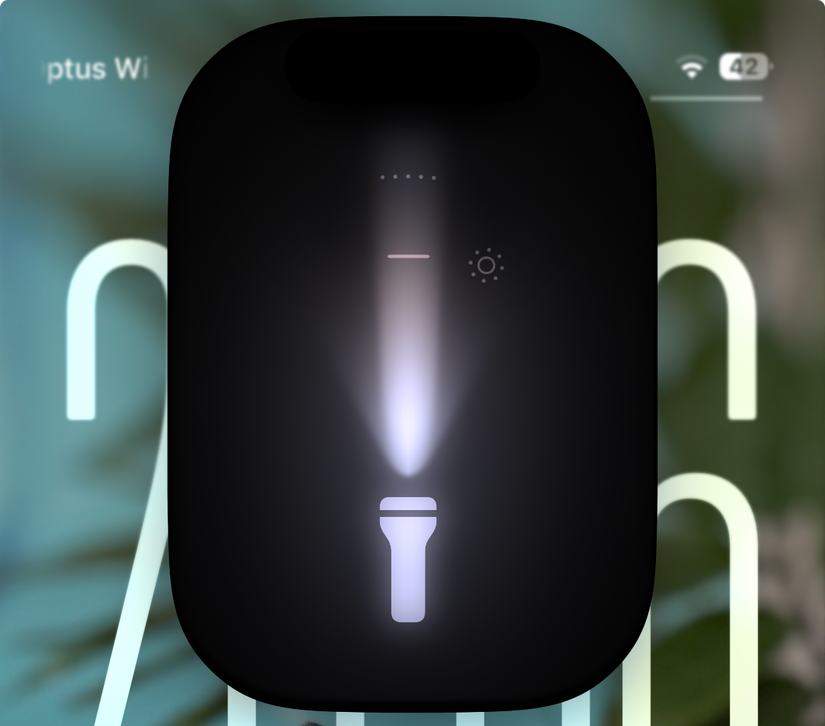
You can bind the Action Button to your flashlight in the Settings menu, and this is one of the first things I did when I upgraded to the iPhone 17 Pro. You don’t need to unlock your iPhone for this to work; you can simply squeeze and hold the button.
If you go this route, you can choose to replace the flashlight button that appears on your iPhone’s lock screen with something else (or remove it entirely for a clean look). Remember that, once turned on, you can tap on the flashlight icon in the iPhone’s Dynamic Island to adjust the intensity and angle (Pro models) of the beam.

Another incredibly useful option that Apple included in the Action Button menu is the ability to identify any song that’s currently playing. This works entirely in the background, as indicated by a small icon that appears in the Dynamic Island at the top of the screen. You can use it without interrupting what you’re doing or unlocking your device.
The song will automatically be added to your Shazam app once recognized, with a notification at the top of the screen and a quick link to Apple Music. Though I’ve used my Apple Watch for Shazam purposes in the past, if I’m going out for the night and I expect to hear music I’ll want to save for later, then I’ll set my Action Button to Shazam for ease of use.

I’ve recently built out my smart home in a way that I’ve been intending to do for a while. Though I use Home Assistant as the backbone of the system, most of my day-to-day interactions with my smart home use the Apple Home interface.Apple’s smart home platform integrates neatly within a Home Assistant setup and offers an arguably more pleasant interface.
I discovered that you can quickly access the Home app via the Action Button using a few different methods. The easiest is to bind the Action Button to a “Control” and then choose the “Home” control. Keep in mind that you need to unlock your device to access the app.
You can also bind the “Scene or Accessory” control to your Action Button in this menu. This is ideal for triggering a specific accessory, like a garage door or an alarm system. I built out a makeshift alarm in Home Assistant and exposed it as a switch, which means I could use the “Scene or Accessory” control to arm or disable it.

Pick “Shortcut” from the Action Button menu to run any of your iPhone workflows simply by pressing and holding the button. For the uninitiated, Shortcuts lets you build workflows using visual code blocks that perform all sorts of actions on your iPhone.
For example, you might have a shortcut you use to record something within the Apple Health app like a measurement or water intake. Pick “Shortcut” from the Action Button menu, then map the desired workflow. You can run the shortcut from anywhere, whatever you’re doing (in this instance, you’ll see a pop-up appear to enter your measurement).
The Shortcuts app is key to unlocking a ridiculous amount of potential for the Action Button (as we’ll discover later).

You can pin apps to your dock, place them on your home screen, and even ask Siri to open them. But you might have one or two apps that are so mission-critical that you want to bind a physical button to them. Thankfully, by creating a new workflow in Shortcuts with the “Open App” action, you can do just that.
In fact, for some apps, you can go even further. The ChatGPT app, for example, lets you jump straight to a voice query, as does Amazon’s Alexa. Google lets you initiate a voice search or jump straight to Google Lens. You can do this with app-specific actions in the Shortcuts app for a vast range of applications.

Speaking of app-specific actions, use the “Open Directions” action in Shortcuts to quickly plan a route home. You can specify your mode of transport and use your current location, then pick your home address or tell Maps to “Ask Each Time” if you want a more generic route planner. You can even pick which app is used, so you can use this Shortcut to route you home via Google Maps.
Once you’ve designed your workflow, bind the Action Button to it using the menu.

A physical playback button is something most of us gave up on when we moved from dedicated MP3 players to smartphones, but there’s no denying the utility. Not having to take your media player out of your pocket to pause or skip what’s playing feels like a lost convenience, especially if your headphones don’t support the feature.
Weirdly, Apple didn’t include this as a baked-in option, nor is there a “Control” entry for it. To use it, you’ll need to create a new workflow in Shortcuts with the “Play/Pause” or “Skip Forward” action and then save it. From here, pick “Shortcut” and then select your new shortcut. This one works without having to unlock your iPhone.

We’ve previously looked at how wearables and health technology can help you stay on top of conditions like diabetes. What’s great is that such devices log health samples automatically, so you can browse them at your leisure. Some health conditions require a closer eye, and for that, you can build a workflow to fetch a specific sample whenever you squeeze the Action Button.
To do this, I used the “Find Health Sample” Action in Shortcuts. If you have a blood glucose monitor, you could fetch that sample, but I went for “Blood oxygen” to prove the concept since my Apple watch records that fairly frequently. From here, I set the “Start date” to be within the last day, sorted by “Start date,” and then made sure to set the “Order” by latest first. Lastly, I used the “Limit” toggle to limit this to the last “1” sample.
Finally, drop a “Show Notification” box in there and customize the alert to your liking. Bind the Action Button to the Shortcut in the usual menu, and you’re done. This one requires that your device be unlocked, for obvious reasons.


I live my life with the orientation of my iPhone locked to portrait. As a result, I sometimes forget that using my iPhone in landscape mode is an option. Using the Action Button to quickly toggle this setting without messing around in the Control Center is a bit of a game-changer.
This is especially true if you’re always using a particular app or website that greatly benefits from landscape mode. Since Apple didn’t include a “Control” for this, it’s back to the Shortcuts app to build a shortcut that contains the “Toggle orientation lock” action and save it. Now pick “Shortcut” and select your workflow from the Action Button menu.

Not every website or service plays nicely with VPNs. I’ve had trouble getting SharePlay to work in the car when my VPN is enabled in the past, and disabling it requires unlocking the phone, finding the app, and tapping the connect button. Thankfully, there’s an easier way.
I currently use ExpressVPN, which uses a “Control” called “Quick Connect” that I can map to my Action Button. DuckDuckGo’s VPN has a similar option.
If your VPN doesn’t support this sort of control, there’s another way you can do this. Head back to the Shortcuts app and create a new workflow with the “Set VPN” action. Change “Connect” to “Toggle” and tap the “VPN” variable to select your preferred protocol. Now save the workflow and head back to the Action Button menu, select “Shortcuts” and pick the shortcut you just created.
You’ll see the “VPN” icon appear and then disappear in the top-right corner of your iPhone’s display when you connect.

If you can’t decide on a single action you’d like to perform with the Action Button, you can get creative and build a whole menu of them. There are a few different ways to do this, but all of them rely on the Shortcuts app. By far the easiest method is to create a separate shortcut for each item you’d like to include, then organize them into the same folder (let’s call it “Action Folder”) within the Shortcuts app.
With this done, head back to the Action Button menu, choose “Shortcut,” and tap “Show Folder...” at the top of the menu. Now choose the “Action Folder” and you’re done. Tap and hold the Shortcuts button, and you’ll see all your actions appear. This works when your iPhone is locked, though you’ll need to either select one or “flick” the folder away to get rid of it.
Another way to do this is to build out a whole list instead, using a Shortcut and the “Choose from Menu” action. This is a more time-consuming method, but it works all the same. There’s also an app called ActionMate that can expedite the process.
Check out all of these methods in our guide to triggering multiple actions with the iPhone’s Action Button.
You can also combine these and use multiple criteria to decide what should happen when you squeeze the button. The sky really is the limit, and the guides we’ve linked to here should be seen as a framework that you can build on. For example, you could build a Shortcut that does different things depending on whether you have certain apps open and then performs a “default” action, like toggling the flashlight, when your device is idle.
This is arguably the best way to get the most out of your Action Button, but it does require a bit of setup on your part. As ever, the methodology involves building out your workflow in Shortcuts first and then using the Action Button to trigger that workflow.
The Action Button is the perfect example of design evolution that gives some users more choice without sacrificing anything for others. The hardest part is figuring out how to use it!
But there’s so much more you can do with this control, especially if your iPhone lives permanently in silent mode. I recently upgraded my iPhone, and here are some of my favorite uses I’ve dabbled with.
Setting the Action Button
The Action Button is a feature of the iPhone 15 Pro or iPhone 16 and later, appearing on the left-hand edge of the device if you’re holding your iPhone in portrait mode. It occupies the space that was dedicated to a ringer roggle, except it’s no longer a switch but a regular button. To use it, press and hold to perform your desired action.On supported models, you’ll be able to change what action is performed under Settings > Action Button. If you decide to get rid of the silent mode toggle functionality, you will find a control for this under the Control Center (which you can access by swiping down from the top-right corner of the screen).
You can even turn the button off altogether using this menu, but why would you when there are so many useful things you can do with it instead?
1 Flashlight
You can bind the Action Button to your flashlight in the Settings menu, and this is one of the first things I did when I upgraded to the iPhone 17 Pro. You don’t need to unlock your iPhone for this to work; you can simply squeeze and hold the button.
If you go this route, you can choose to replace the flashlight button that appears on your iPhone’s lock screen with something else (or remove it entirely for a clean look). Remember that, once turned on, you can tap on the flashlight icon in the iPhone’s Dynamic Island to adjust the intensity and angle (Pro models) of the beam.
2 Shazam
Another incredibly useful option that Apple included in the Action Button menu is the ability to identify any song that’s currently playing. This works entirely in the background, as indicated by a small icon that appears in the Dynamic Island at the top of the screen. You can use it without interrupting what you’re doing or unlocking your device.
The song will automatically be added to your Shazam app once recognized, with a notification at the top of the screen and a quick link to Apple Music. Though I’ve used my Apple Watch for Shazam purposes in the past, if I’m going out for the night and I expect to hear music I’ll want to save for later, then I’ll set my Action Button to Shazam for ease of use.
3 Controlling a Smart Home
I’ve recently built out my smart home in a way that I’ve been intending to do for a while. Though I use Home Assistant as the backbone of the system, most of my day-to-day interactions with my smart home use the Apple Home interface.Apple’s smart home platform integrates neatly within a Home Assistant setup and offers an arguably more pleasant interface.
I discovered that you can quickly access the Home app via the Action Button using a few different methods. The easiest is to bind the Action Button to a “Control” and then choose the “Home” control. Keep in mind that you need to unlock your device to access the app.
You can also bind the “Scene or Accessory” control to your Action Button in this menu. This is ideal for triggering a specific accessory, like a garage door or an alarm system. I built out a makeshift alarm in Home Assistant and exposed it as a switch, which means I could use the “Scene or Accessory” control to arm or disable it.
4 Running a Shortcut
Pick “Shortcut” from the Action Button menu to run any of your iPhone workflows simply by pressing and holding the button. For the uninitiated, Shortcuts lets you build workflows using visual code blocks that perform all sorts of actions on your iPhone.
For example, you might have a shortcut you use to record something within the Apple Health app like a measurement or water intake. Pick “Shortcut” from the Action Button menu, then map the desired workflow. You can run the shortcut from anywhere, whatever you’re doing (in this instance, you’ll see a pop-up appear to enter your measurement).
The Shortcuts app is key to unlocking a ridiculous amount of potential for the Action Button (as we’ll discover later).
5 Open Literally Any App
You can pin apps to your dock, place them on your home screen, and even ask Siri to open them. But you might have one or two apps that are so mission-critical that you want to bind a physical button to them. Thankfully, by creating a new workflow in Shortcuts with the “Open App” action, you can do just that.
In fact, for some apps, you can go even further. The ChatGPT app, for example, lets you jump straight to a voice query, as does Amazon’s Alexa. Google lets you initiate a voice search or jump straight to Google Lens. You can do this with app-specific actions in the Shortcuts app for a vast range of applications.
6 Get Directions Home
Speaking of app-specific actions, use the “Open Directions” action in Shortcuts to quickly plan a route home. You can specify your mode of transport and use your current location, then pick your home address or tell Maps to “Ask Each Time” if you want a more generic route planner. You can even pick which app is used, so you can use this Shortcut to route you home via Google Maps.
Once you’ve designed your workflow, bind the Action Button to it using the menu.
7 Control Music Playback
A physical playback button is something most of us gave up on when we moved from dedicated MP3 players to smartphones, but there’s no denying the utility. Not having to take your media player out of your pocket to pause or skip what’s playing feels like a lost convenience, especially if your headphones don’t support the feature.
Weirdly, Apple didn’t include this as a baked-in option, nor is there a “Control” entry for it. To use it, you’ll need to create a new workflow in Shortcuts with the “Play/Pause” or “Skip Forward” action and then save it. From here, pick “Shortcut” and then select your new shortcut. This one works without having to unlock your iPhone.
8 Keep an Eye on Important Health Data
We’ve previously looked at how wearables and health technology can help you stay on top of conditions like diabetes. What’s great is that such devices log health samples automatically, so you can browse them at your leisure. Some health conditions require a closer eye, and for that, you can build a workflow to fetch a specific sample whenever you squeeze the Action Button.
To do this, I used the “Find Health Sample” Action in Shortcuts. If you have a blood glucose monitor, you could fetch that sample, but I went for “Blood oxygen” to prove the concept since my Apple watch records that fairly frequently. From here, I set the “Start date” to be within the last day, sorted by “Start date,” and then made sure to set the “Order” by latest first. Lastly, I used the “Limit” toggle to limit this to the last “1” sample.
Finally, drop a “Show Notification” box in there and customize the alert to your liking. Bind the Action Button to the Shortcut in the usual menu, and you’re done. This one requires that your device be unlocked, for obvious reasons.
9 Enabling and Disabling Orientation Lock
I live my life with the orientation of my iPhone locked to portrait. As a result, I sometimes forget that using my iPhone in landscape mode is an option. Using the Action Button to quickly toggle this setting without messing around in the Control Center is a bit of a game-changer.
This is especially true if you’re always using a particular app or website that greatly benefits from landscape mode. Since Apple didn’t include a “Control” for this, it’s back to the Shortcuts app to build a shortcut that contains the “Toggle orientation lock” action and save it. Now pick “Shortcut” and select your workflow from the Action Button menu.
10 Toggling a VPN
Not every website or service plays nicely with VPNs. I’ve had trouble getting SharePlay to work in the car when my VPN is enabled in the past, and disabling it requires unlocking the phone, finding the app, and tapping the connect button. Thankfully, there’s an easier way.
I currently use ExpressVPN, which uses a “Control” called “Quick Connect” that I can map to my Action Button. DuckDuckGo’s VPN has a similar option.
If your VPN doesn’t support this sort of control, there’s another way you can do this. Head back to the Shortcuts app and create a new workflow with the “Set VPN” action. Change “Connect” to “Toggle” and tap the “VPN” variable to select your preferred protocol. Now save the workflow and head back to the Action Button menu, select “Shortcuts” and pick the shortcut you just created.
You’ll see the “VPN” icon appear and then disappear in the top-right corner of your iPhone’s display when you connect.
11 Action Button Menu With Multiple Actions
If you can’t decide on a single action you’d like to perform with the Action Button, you can get creative and build a whole menu of them. There are a few different ways to do this, but all of them rely on the Shortcuts app. By far the easiest method is to create a separate shortcut for each item you’d like to include, then organize them into the same folder (let’s call it “Action Folder”) within the Shortcuts app.
With this done, head back to the Action Button menu, choose “Shortcut,” and tap “Show Folder...” at the top of the menu. Now choose the “Action Folder” and you’re done. Tap and hold the Shortcuts button, and you’ll see all your actions appear. This works when your iPhone is locked, though you’ll need to either select one or “flick” the folder away to get rid of it.
Another way to do this is to build out a whole list instead, using a Shortcut and the “Choose from Menu” action. This is a more time-consuming method, but it works all the same. There’s also an app called ActionMate that can expedite the process.
Check out all of these methods in our guide to triggering multiple actions with the iPhone’s Action Button.
12 Conditional Actions Based on Criteria
Last but not least, depending on how much you enjoy tinkering with the Shortcuts app, you can design a Shortcut that does different things based on different criteria. So you can perform different actions based on your current location, which Focus mode is active, how you’re holding your iPhone, and the current time of day.You can also combine these and use multiple criteria to decide what should happen when you squeeze the button. The sky really is the limit, and the guides we’ve linked to here should be seen as a framework that you can build on. For example, you could build a Shortcut that does different things depending on whether you have certain apps open and then performs a “default” action, like toggling the flashlight, when your device is idle.
This is arguably the best way to get the most out of your Action Button, but it does require a bit of setup on your part. As ever, the methodology involves building out your workflow in Shortcuts first and then using the Action Button to trigger that workflow.
The Action Button is the perfect example of design evolution that gives some users more choice without sacrificing anything for others. The hardest part is figuring out how to use it!